Introduction
This page demonstrates how JPG/PNG images converted to WebP format via the optimise-images.sh batch image converter tool can be served conditionally via Nginx web server to web browsers that support WebP image formats.
See the community forum thread for WebP conversion details. The optimise-images.sh tool also has an optimise-webp-nginx mode which allows the Nginx config syntax below to be auto-generated based on your web directory path containing your JPG/PNG and WebP images, and can also auto-generate a static HTML gallery comparing optimised resized JPG/PNG images side by side with their WebP converted counterparts.
WebP Format Benefits
WebP format images are usually much smaller in size than JPG/PNG files (up to 80% smaller), allowing web pages to load faster. WebP is supported by most modern web browsers including Google Chrome, Opera, Firefox, Edge, and Safari. For older browsers that do not support WebP, the configuration below provides automatic fallback to standard JPG or PNG images.
The guide below is for Nginx users who are not using the Nginx ngx_pagespeed module, which has filters that allow on-the-fly auto conversion of JPG, PNG, and GIF files to WebP format for browsers that support it. You can read up on the benefits of the ngx_pagespeed module here.
Nginx WebP Configuration
Step 1. Include the WebP Config
In order for Nginx to conditionally serve WebP format images to only web browsers that support it, set up a conditional Nginx map which inspects the client’s web browser Accept header for the WebP mime type. Centmin Mod 123.09beta01 and newer versions already have the /usr/local/nginx/conf/webp.conf include file set up in /usr/local/nginx/conf/nginx.conf. If you are using an older version, add an include within the http{} server context:
include /usr/local/nginx/conf/webp.conf;Step 2. Create the WebP Map Configuration
Within /usr/local/nginx/conf/webp.conf add the following contents (updated April 2, 2020 for Cloudflare compatibility):
map $http_accept $webpok {
   default   0;
   "~*webp"  1;
}

map $http_cf_cache_status $iscf {
   default   1;
   ""        0;
}

map $webpok$iscf $webp_extension {
  11          "";
  10          ".webp";
  01          "";
  00          "";
}
Cloudflare Compatibility
The updated version allows proper compatibility with Cloudflare Proxy and DNS-only modes. When Cloudflare Proxy CDN mode is detected, Centmin Mod Nginx WebP is disabled because Cloudflare’s cache does not support the HTTP Vary header. When Cloudflare DNS-only mode is detected (or in the absence of Cloudflare), Nginx WebP is enabled.
The logic works as follows:
- When the browser supports WebP (HTTP
Acceptheader containsimage/webp),$webpokis set to1 - When the
cf-cache-statusheader exists (Cloudflare Proxy mode),$iscfis set to1; if absent, it is set to0 - When
$webpok$iscf=10(browser supports WebP and no Cloudflare proxy),$webp_extensionis set to.webp- enabling Nginx WebP support by appending the extension to the original image filename
Step 3. Vhost Location Block
Within your Nginx vhost’s location context (for example, /webp), add the following. Remove the X-Robots-Tag header if you want the directory to be indexed by search engines, and remove autoindex if you do not want directory contents to be viewable. For Nginx ngx_pagespeed users, uncomment the pagespeed off (for ngx_pagespeed 1.12.34.3-stable and below) or pagespeed unplugged (for 1.13.35.1-beta and above) to disable ngx_pagespeed within this directory.
location /webp {
  #pagespeed off;
  #pagespeed unplugged;
  autoindex on;
  add_header X-Robots-Tag "noindex, nofollow";
  location ~* ^/webp/.+\.(png|jpe?g)$ {
    expires 30d;
    add_header Vary "Accept";
    add_header Cache-Control "public, no-transform";
    try_files $uri$webp_extension $uri =404;
  }
}
The Cache-Control header’s no-transform directive ensures that no transformations or conversions are made to the resource. As MDN explains, this prevents proxies from converting between image formats to save cache space or reduce traffic on slow links.
WordPress Uploads Example
This example is for WordPress’s /wp-content/uploads/ directory. Notice the differences in the inner location context match for .png and .jpg/.jpeg images. You will need to adjust this for your specific web application. The autoindex on directive is commented out/disabled since you probably do not want images in the uploads directory to be directly visible and listed.
# webp extension support if you are converting /uploads images to webp
location ~ ^/wp-content/uploads/ {
  #pagespeed off;
  #pagespeed unplugged;
  #autoindex on;
  #add_header X-Robots-Tag "noindex, nofollow";
  location ~* ^/wp-content/uploads/(.+/)?(.+)\.(png|jpe?g)$ {
   expires 30d;
   add_header Vary "Accept";
   add_header Cache-Control "public, no-transform";
   try_files $uri$webp_extension $uri =404;
  }
}
Step 4. Restart Nginx
Restart Nginx for changes to take effect:
service nginx restartDemo WebP Images
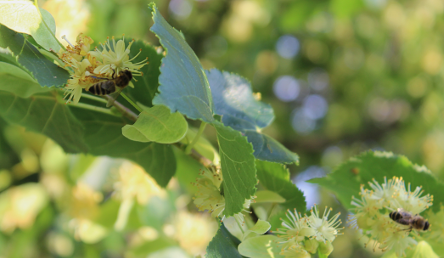
Below is a demo of a PNG embedded image, bees.png, which has a corresponding bees.png.webp format image in the same directory. When this page is viewed in a web browser that supports WebP and is served from a web server like Nginx with the above configuration, the image mime type will be reported as WebP instead of PNG while the image extension remains as bees.png. Otherwise, the original bees.png image is served with a PNG mime type.
Original bees.png file size is 177,424 bytes (173.27 KB) and bees.png.webp optimised file size is 10,520 bytes (10.27 KB).
Browser DevTools Verification
Chrome and Opera web browser users will see the WebP version (Mime Type = WebP):
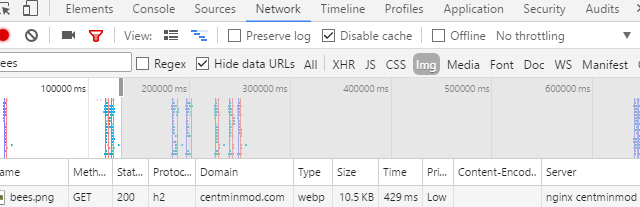
While unsupported browsers (older versions of Firefox, IE11/Edge, Safari) will see the PNG version (Mime Type = PNG):

WebP Comparison Gallery
Below is an example of the optimise-images.sh batch conversion and resizer tool’s optimise-webp-nginx mode auto-generated static HTML gallery comparing optimised and resized JPG/PNG images side by side with their WebP converted copies.
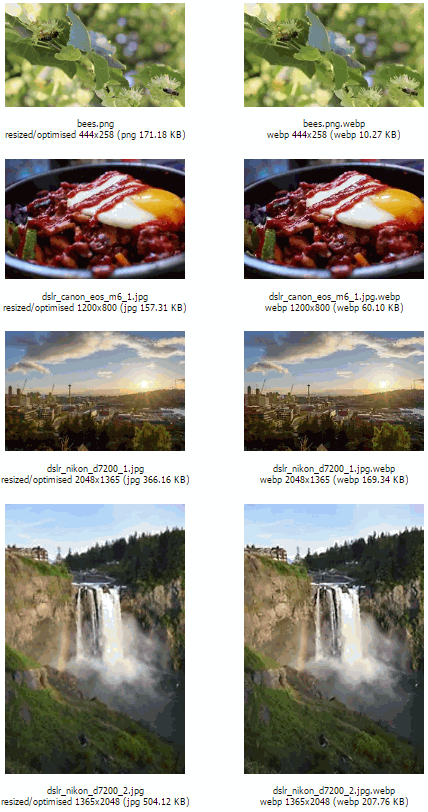
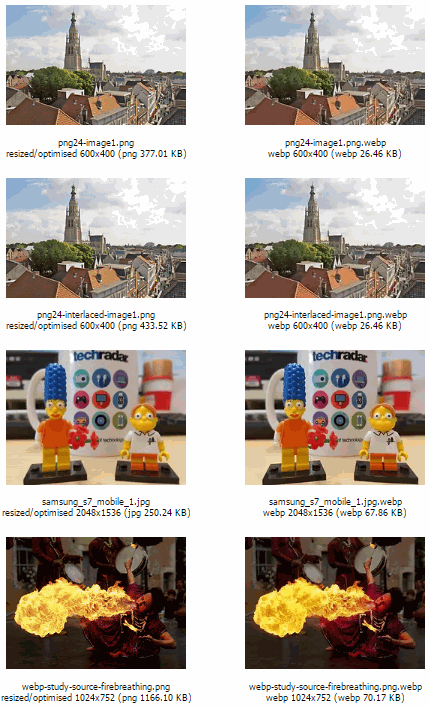
Image Profile - With Resizing
The optimise-images.sh tool outputs detailed image profile data showing original vs. WebP file sizes:
------------------------------------------------------------------------------
image profile
image name : width : height : quality : transparency : image depth (bits) : size : user: group
------------------------------------------------------------------------------
images in /usr/local/nginx/html/webp
logged at /home/optimise-logs/profile-log-010517-115230.log
------------------------------------------------------------------------------
image : bees.png : 444 : 258 : 92 : False : 8 : 175296 : root : nginx
image : bees.png.webp : 444 : 258 : 92 : False : 8 : 10520 : root : nginx
image : dslr_canon_eos_m6_1.jpg : 1200 : 800 : 82 : False : 8 : 161086 : root : nginx
image : dslr_canon_eos_m6_1.jpg.webp : 1200 : 800 : 92 : False : 8 : 61544 : root : nginx
image : dslr_nikon_d7200_1.jpg : 2048 : 1365 : 82 : False : 8 : 374954 : root : nginx
image : dslr_nikon_d7200_1.jpg.webp : 2048 : 1365 : 92 : False : 8 : 173414 : root : nginx
image : dslr_nikon_d7200_2.jpg : 1365 : 2048 : 82 : False : 8 : 516224 : root : nginx
image : dslr_nikon_d7200_2.jpg.webp : 1365 : 2048 : 92 : False : 8 : 212754 : root : nginx
image : png24-image1.png : 600 : 400 : 92 : False : 8 : 386063 : root : nginx
image : png24-image1.png.webp : 600 : 400 : 92 : False : 8 : 27104 : root : nginx
image : png24-interlaced-image1.png : 600 : 400 : 92 : False : 8 : 443931 : root : nginx
image : png24-interlaced-image1.png.webp : 600 : 400 : 92 : False : 8 : 27104 : root : nginx
image : samsung_s7_mobile_1.jpg : 2048 : 1536 : 82 : False : 8 : 256253 : root : nginx
image : samsung_s7_mobile_1.jpg.webp : 2048 : 1536 : 92 : False : 8 : 69490 : root : nginx
image : webp-study-source-firebreathing.png : 1024 : 752 : 92 : False : 8 : 1194091 : root : nginx
image : webp-study-source-firebreathing.png.webp : 1024 : 752 : 92 : False : 8 : 71860 : root : nginx

------------------------------------------------------------------------------
Original or Existing Images:
------------------------------------------------------------------------------
| Avg width | Avg height | Avg quality | Avg size   | Total size (Bytes) | Total size (KB) |
| --------- | ---------- | ----------- | --------   | ------------------ | --------------- |
| 1166      | 945        | 87          | 438487     | 3507898            | 3426            |

------------------------------------------------------------------------------
Optimised WebP Images:
------------------------------------------------------------------------------
| Avg width | Avg height | Avg quality | Avg size   | Total size (Bytes) | Total size (KB) |
| --------- | ---------- | ----------- | --------   | ------------------ | --------------- |
| 1166      | 945        | 92          | 81724      | 653790             | 638             |
Image Profile - Without Resizing
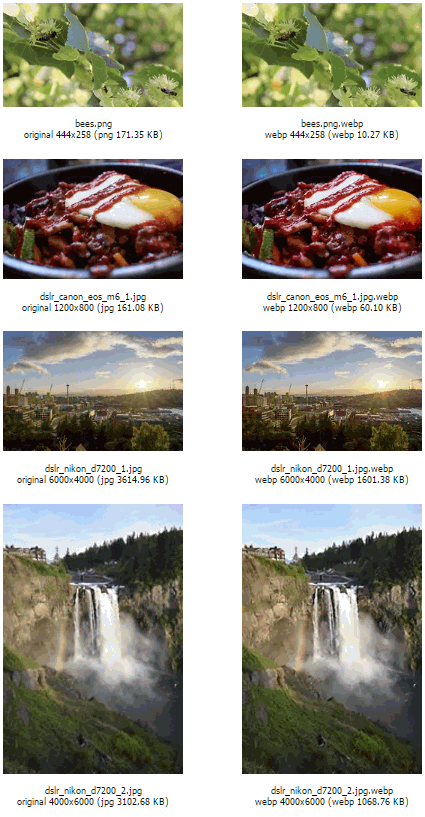
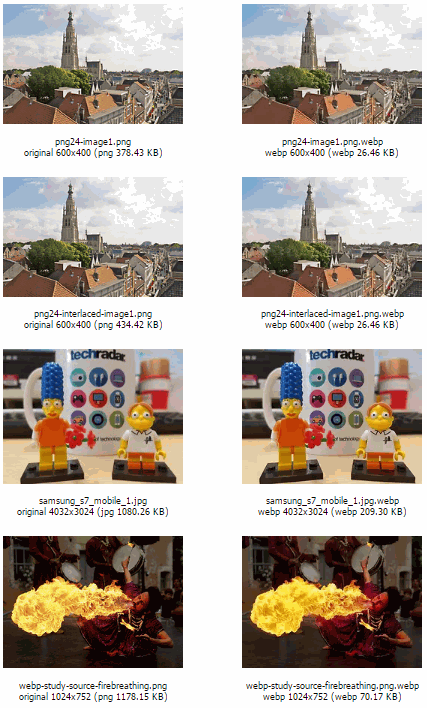
When resizing is disabled to work with original images via IMAGICK_RESIZE='n':
------------------------------------------------------------------------------
image profile
image name : width : height : quality : transparency : image depth (bits) : size : user: group
------------------------------------------------------------------------------
images in /home/nginx/domains/domain.com/public/images
logged at /home/optimise-logs/profile-log-010517-114117.log
------------------------------------------------------------------------------
image : bees.png : 444 : 258 : 92 : False : 8 : 175467 : root : nginx
image : bees.png.webp : 444 : 258 : 92 : False : 8 : 10520 : root : nginx
image : dslr_canon_eos_m6_1.jpg : 1200 : 800 : 82 : False : 8 : 164947 : root : nginx
image : dslr_canon_eos_m6_1.jpg.webp : 1200 : 800 : 92 : False : 8 : 61544 : root : nginx
image : dslr_nikon_d7200_1.jpg : 6000 : 4000 : 82 : False : 8 : 3701729 : root : nginx
image : dslr_nikon_d7200_1.jpg.webp : 6000 : 4000 : 92 : False : 8 : 1639822 : root : nginx
image : dslr_nikon_d7200_2.jpg : 4000 : 6000 : 82 : False : 8 : 3177146 : root : nginx
image : dslr_nikon_d7200_2.jpg.webp : 4000 : 6000 : 92 : False : 8 : 1094418 : root : nginx
image : png24-image1.png : 600 : 400 : 92 : False : 8 : 387519 : root : nginx
image : png24-image1.png.webp : 600 : 400 : 92 : False : 8 : 27104 : root : nginx
image : png24-interlaced-image1.png : 600 : 400 : 92 : False : 8 : 444852 : root : nginx
image : png24-interlaced-image1.png.webp : 600 : 400 : 92 : False : 8 : 27104 : root : nginx
image : samsung_s7_mobile_1.jpg : 4032 : 3024 : 82 : False : 8 : 1106190 : root : nginx
image : samsung_s7_mobile_1.jpg.webp : 4032 : 3024 : 92 : False : 8 : 214324 : root : nginx
image : webp-study-source-firebreathing.png : 1024 : 752 : 92 : False : 8 : 1206431 : root : nginx
image : webp-study-source-firebreathing.png.webp : 1024 : 752 : 92 : False : 8 : 71860 : root : nginx

------------------------------------------------------------------------------
Original or Existing Images:
------------------------------------------------------------------------------
| Avg width | Avg height | Avg quality | Avg size   | Total size (Bytes) | Total size (KB) |
| --------- | ---------- | ----------- | --------   | ------------------ | --------------- |
| 2238      | 1954       | 87          | 1295535    | 10364281           | 10121           |

------------------------------------------------------------------------------
Optimised WebP Images:
------------------------------------------------------------------------------
| Avg width | Avg height | Avg quality | Avg size   | Total size (Bytes) | Total size (KB) |
| --------- | ---------- | ----------- | --------   | ------------------ | --------------- |
| 2238      | 1954       | 92          | 393337     | 3146696            | 3073            |
Explore Full Nginx Documentation
Learn more about Nginx configuration, SSL/TLS setup, vhost management, and performance tuning in Centmin Mod:
View Nginx Documentation